
In this tutorial, I’m going to explain how I was able to hide or remove forms from the dropdown list that appears at the top of Zendesk forms. You will need admin permissions, some extra confidence and reassurance everything will work just fine :)
After working with Zendesk for 3 years understanding how to create views, reports, integrate with other 3rd-party tools, it wasn’t until recently I needed to edit our default theme to fix a UX/UI issue with our Ticket Forms. By had to figure out how to edit the default theme template code to make changes on our forms. The reason why I created this post is because it was impossible to find the help article on this on Zendesk and only after chatting for support, waiting 24 hours for a response (IYKYK), was I able to get a link to where others shared their solution… But, there’s a lot of reading and having a concise, step-by-step can likely help more non-technical Zendesk users in the community.
The Goal: Hide/Remove Forms from Dropdown List

The Problem: Zendesk’s Form Settings Don’t Give You Options to Hide Forms from the Dropdown.
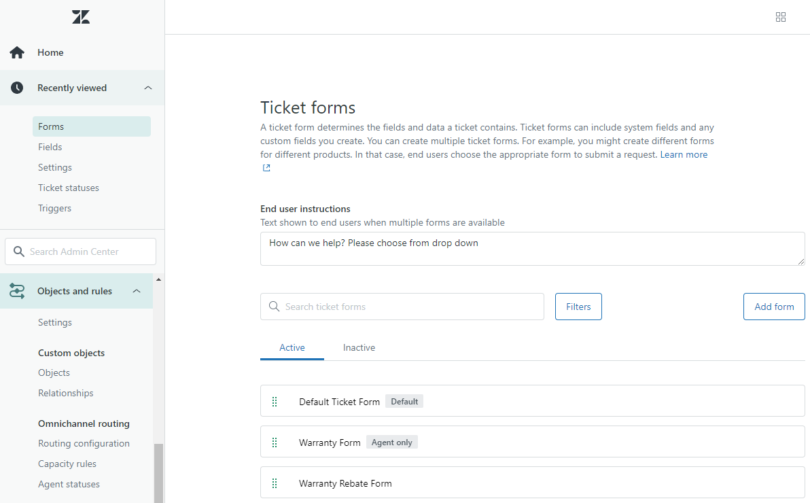
By default, Zendesk lists all Ticket Forms you create in a single group. This group of forms are display in a drop downlist. As seen above. Below is a screenshot of the Zendesk Ticket forms admin area.
The Solution: Edit the Script.js in the Template
Follow the steps below.
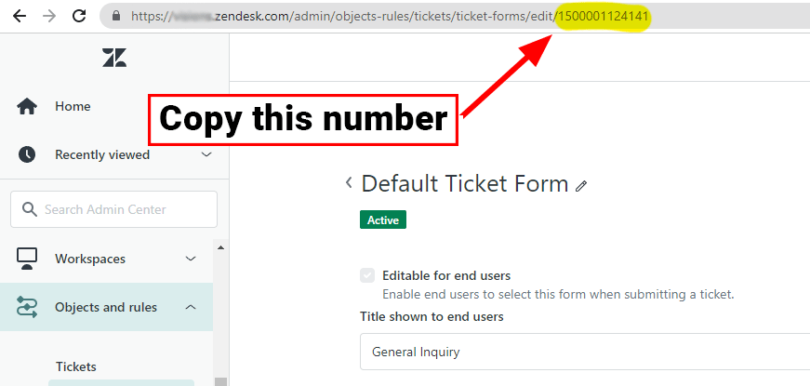
Step 1: Get the Form IDs you want to Hide from the dropdown. In my example, I highlighted where to get the ID; its at the end of the URL, “1500001124141”
Step 2: Copy the following code
/*
 * Function: Hide Forms from Dropdown
 * By: King Rosales
 * Date: Jan 11, 2023
 */

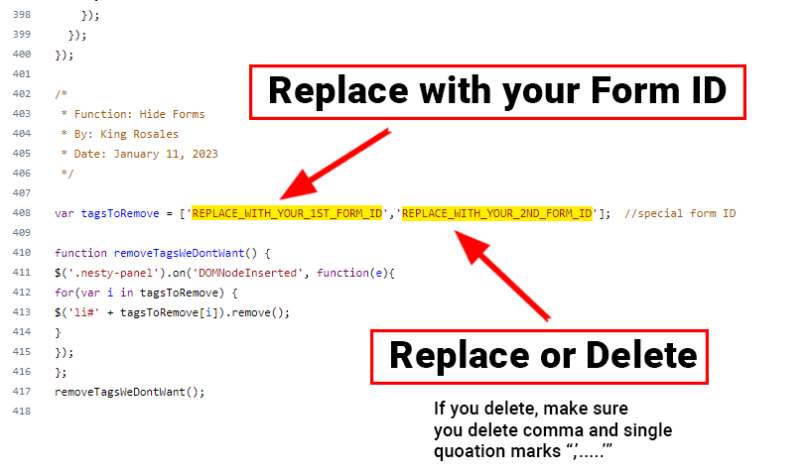
var tagsToRemove = ['REPLACE_WITH_YOUR_FORM_ID_HERE'];  //special form ID

function removeTagsWeDontWant() {
$('.nesty-panel').on('DOMNodeInserted', function(e){
for(var i in tagsToRemove) {
$('li#' + tagsToRemove[i]).remove();
}
});
};
removeTagsWeDontWant();
Step 3: Click the for squares icon in the top right corner in Zendesk, and click, “Guides”

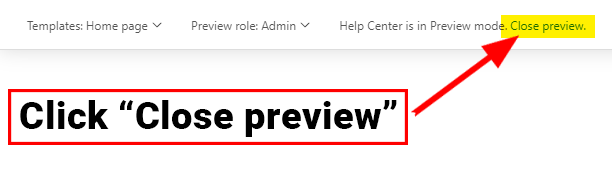
Step 4: Click “Close preview” on the top left hand corner of browser
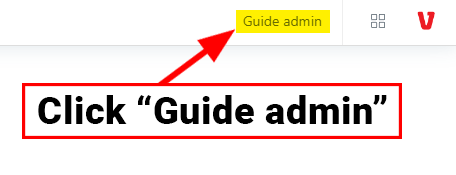
Step 5: Click “Guide admin” on top right corner of browser
Step 6: Click the “eye” icon on the left menu panel
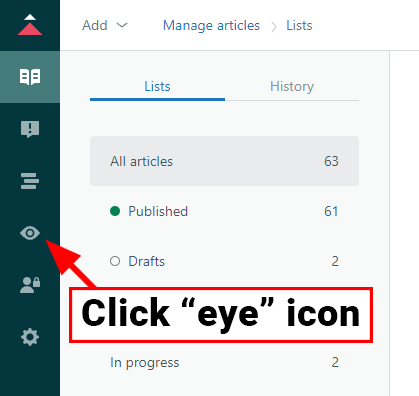
Step 7: Click on “Customize” for your current theme.

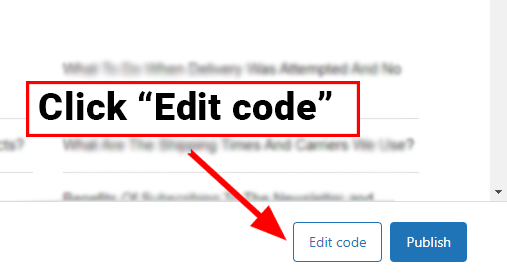
Step 8: Click “Edit code” button on the bottom right hand corner of browser.
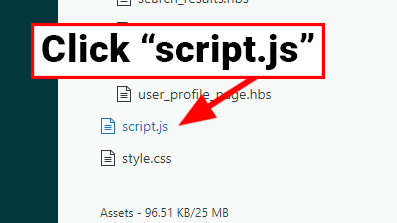
Step 9: On the files list, scroll down and click, “script.js” file.
Step 10: In the code panel, scroll down all the way to the bottom and paste the code you copied earlier.
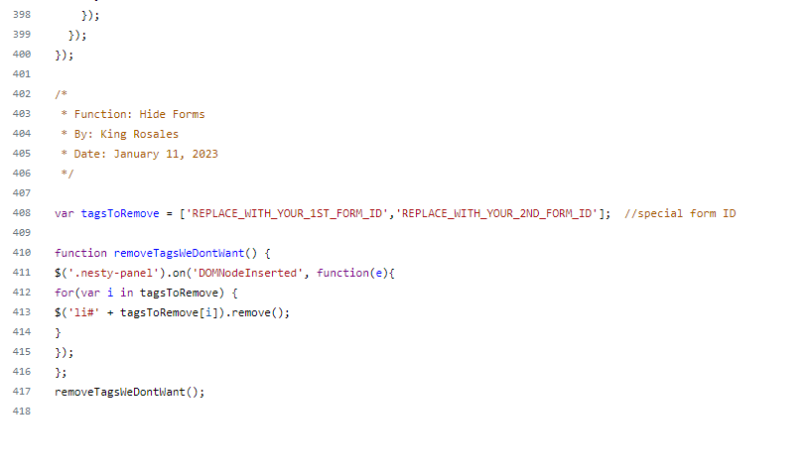
Step 11: In the replace the “REPLACE_WITH_YOUR_1ST_FORM_ID”, with the ID of your form you copied/noted down earlier.
- And, if you’re like me, and need to hide more than 1 form, all you need to do is add a comma and add another form ID in between single quotation marks.
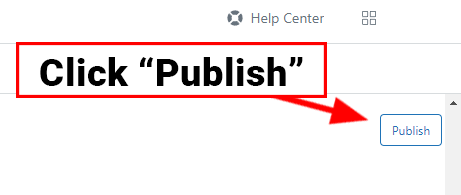
Step 12: Click “Publish” and you are done. Visit your Ticket form and voila! those forms are hidden from the list.
I hope this tutorial helped you.
Good luck & have fun!


Leave a Reply